Adding Networks to MetaMask
Add Polygon Network to MetaMask
Open MetaMask: Launch MetaMask on your browser or mobile app.
Network Dropdown: Click on the network dropdown at the top (it might say "Ethereum Mainnet" or another network name).
Custom RPC: Scroll down and select "Add Network" or "Custom RPC".
Enter Polygon Network Details:
View Tokens on Polygon Network Switch Network: Ensure you are now connected to the Polygon network in MetaMask.
Check for Tokens: Go to your wallet overview to see if the tokens have appeared.
Add Custom Token (if needed):
Click "Import Tokens" at the bottom of the wallet overview.
Enter the token contract address if the tokens don't appear automatically. For POL (Polygon token), use the official token address. You can find this on Polygon's official resources or explorer.
Transaction History If you still don't see the tokens, you can check the transaction history using a block explorer like PolygonScan: Visit PolygonScan
Paste Wallet Address: Enter your MetaMask wallet address in the search bar.
View Transactions: Look for the recent transaction and check its status.
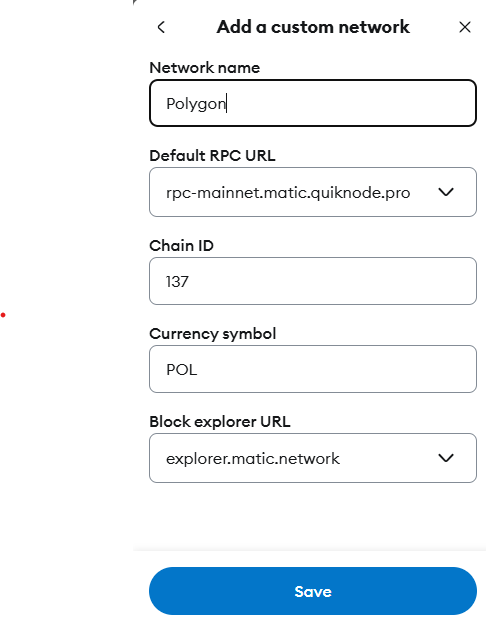 “Polygon” was successfully added!
Important Note
Ensure you input the details correctly, including the Chain ID 137, to avoid errors.
Once you've successfully added the Polygon network, check if the tokens appear in your MetaMask wallet.
------
how can i ensure i am on the testnet link
To ensure you're connected to the Polygon testnet (Amoy), follow these steps:
Steps to Connect to Polygon Testnet (Amoy)
Open MetaMask: Launch MetaMask on your browser or mobile app.
Network Dropdown: Click on the network dropdown at the top (it might say "Ethereum Mainnet" or another network name).
Add Network: Scroll down and select "Add Network" or "Custom RPC".
Enter Network Details:
Network Name: Polygon Testnet (Amoy)
New RPC URL: https://rpc-amoy.polygon.technology
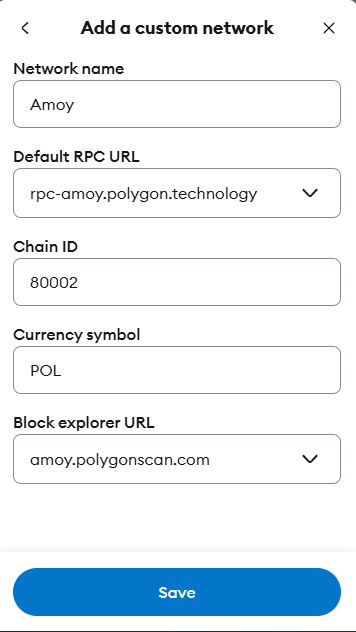
Chain ID: 80002
*** this caused error:
According to our records, the network name may not correctly match this chain ID.
suggest Network name: Amoy
Currency Symbol: MATIC
error:
Suggested currency symbol: POL
This token symbol doesn't match the network name or chain ID entered. Many popular tokens use similar symbols, which scammers can use to trick you into sending them a more valuable token in return. Verify everything before you continue.
Block Explorer URL: https://amoy.polygonscan.com
Save: Click "Save" to add the Polygon testnet to your MetaMask.
“Polygon” was successfully added!
Important Note
Ensure you input the details correctly, including the Chain ID 137, to avoid errors.
Once you've successfully added the Polygon network, check if the tokens appear in your MetaMask wallet.
------
how can i ensure i am on the testnet link
To ensure you're connected to the Polygon testnet (Amoy), follow these steps:
Steps to Connect to Polygon Testnet (Amoy)
Open MetaMask: Launch MetaMask on your browser or mobile app.
Network Dropdown: Click on the network dropdown at the top (it might say "Ethereum Mainnet" or another network name).
Add Network: Scroll down and select "Add Network" or "Custom RPC".
Enter Network Details:
Network Name: Polygon Testnet (Amoy)
New RPC URL: https://rpc-amoy.polygon.technology
Chain ID: 80002
*** this caused error:
According to our records, the network name may not correctly match this chain ID.
suggest Network name: Amoy
Currency Symbol: MATIC
error:
Suggested currency symbol: POL
This token symbol doesn't match the network name or chain ID entered. Many popular tokens use similar symbols, which scammers can use to trick you into sending them a more valuable token in return. Verify everything before you continue.
Block Explorer URL: https://amoy.polygonscan.com
Save: Click "Save" to add the Polygon testnet to your MetaMask.
Network Dropdown: Click on the network dropdown at the top (it might say "Ethereum Mainnet" or another network name).
Custom RPC: Scroll down and select "Add Network" or "Custom RPC".
Enter Polygon Network Details:
- Network Name: Polygon
- New RPC URL: https://rpc-mainnet.maticvigil.com/
- ALT RPC URL: https://rpc-mainnet.matic.quiknode.pro
- Chain ID: 137
- Currency Symbol: MATIC
- Block Explorer URL: https://explorer.matic.network/
View Tokens on Polygon Network Switch Network: Ensure you are now connected to the Polygon network in MetaMask.
Check for Tokens: Go to your wallet overview to see if the tokens have appeared.
Add Custom Token (if needed):
Click "Import Tokens" at the bottom of the wallet overview.
Enter the token contract address if the tokens don't appear automatically. For POL (Polygon token), use the official token address. You can find this on Polygon's official resources or explorer.
Transaction History If you still don't see the tokens, you can check the transaction history using a block explorer like PolygonScan: Visit PolygonScan
Paste Wallet Address: Enter your MetaMask wallet address in the search bar.
View Transactions: Look for the recent transaction and check its status.
“Polygon” was successfully added!
Important Note
Ensure you input the details correctly, including the Chain ID 137, to avoid errors.
Once you've successfully added the Polygon network, check if the tokens appear in your MetaMask wallet.
------
how can i ensure i am on the testnet link
To ensure you're connected to the Polygon testnet (Amoy), follow these steps:
Steps to Connect to Polygon Testnet (Amoy)
Open MetaMask: Launch MetaMask on your browser or mobile app.
Network Dropdown: Click on the network dropdown at the top (it might say "Ethereum Mainnet" or another network name).
Add Network: Scroll down and select "Add Network" or "Custom RPC".
Enter Network Details:
Network Name: Polygon Testnet (Amoy)
New RPC URL: https://rpc-amoy.polygon.technology
Chain ID: 80002
*** this caused error:
According to our records, the network name may not correctly match this chain ID.
suggest Network name: Amoy
Currency Symbol: MATIC
error:
Suggested currency symbol: POL
This token symbol doesn't match the network name or chain ID entered. Many popular tokens use similar symbols, which scammers can use to trick you into sending them a more valuable token in return. Verify everything before you continue.
Block Explorer URL: https://amoy.polygonscan.com
Save: Click "Save" to add the Polygon testnet to your MetaMask.
Verify Connection
Switch Network: Ensure you are now connected to the Polygon testnet (Amoy) in MetaMask.

Check Network Name: The network dropdown should now show "Polygon Testnet (Amoy)".

Check Tokens: Go to your wallet overview to see if the testnet tokens have appeared.

Would you like any further assistance with these steps?